
The Imaging Source is a Leading Manufacturer of Industrial Cameras, Video Signal Converters and Embedded Vision Components.
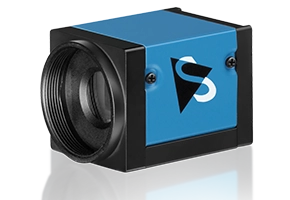
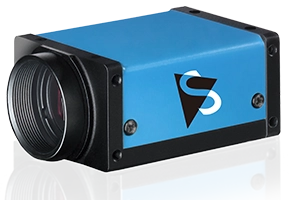
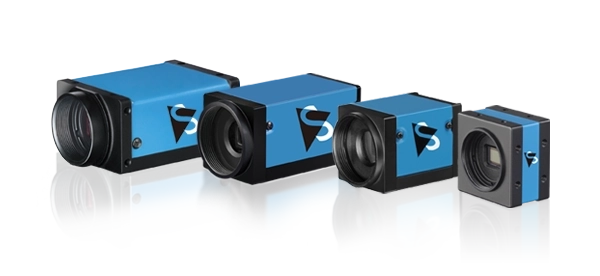
Industrial Cameras
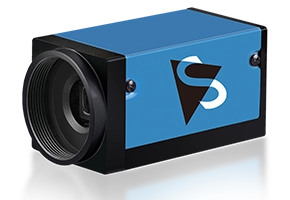
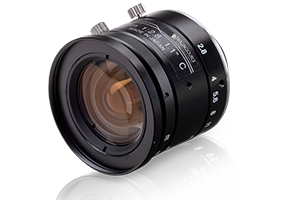
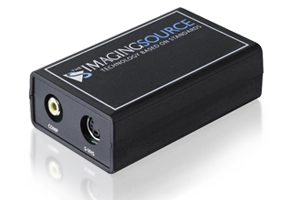
With a selection of over 100 industrial cameras, The Imaging Source maintains one of the broadest portfolios in the machine vision market.
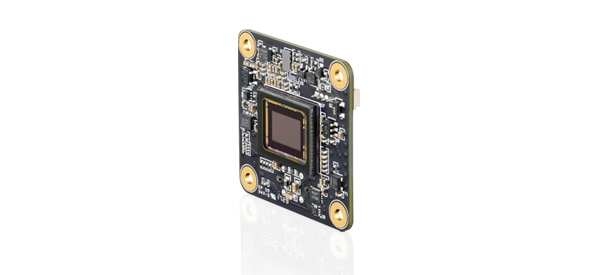
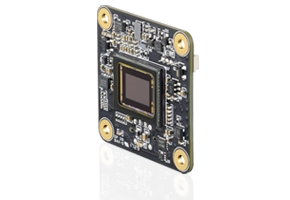
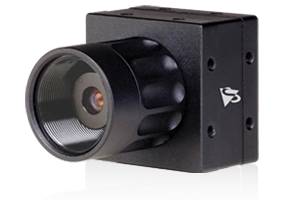
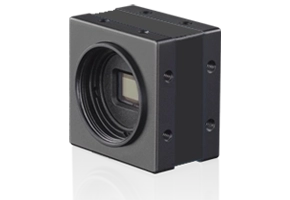
Board Cameras
Optimized for cost sensitive, high-volume machine vision projects, The Imaging Source's board-level cameras deliver maximum flexibility.

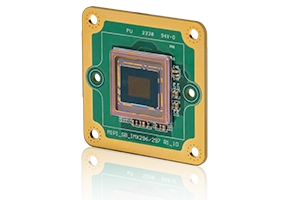
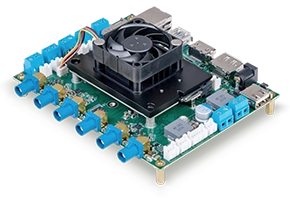
Embedded Vision
Embedded vision systems are ideal for AI and scientific applications due to improved processing power, low power consumption, and cost-efficiency.
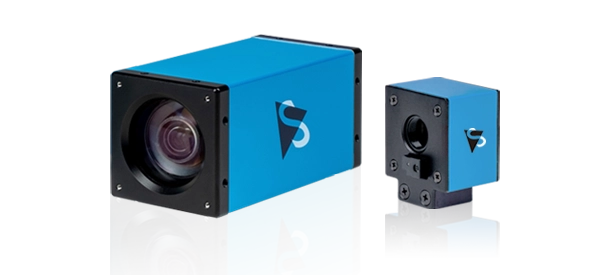
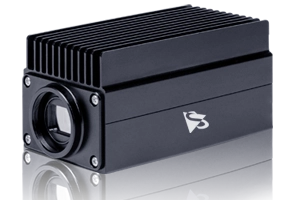
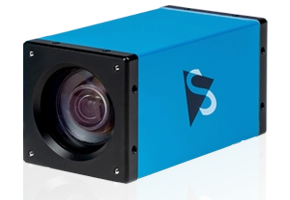
Zoom & Autofocus Cameras
Increased imaging flexibility for applications with variable working distances or object sizes.
Latest News
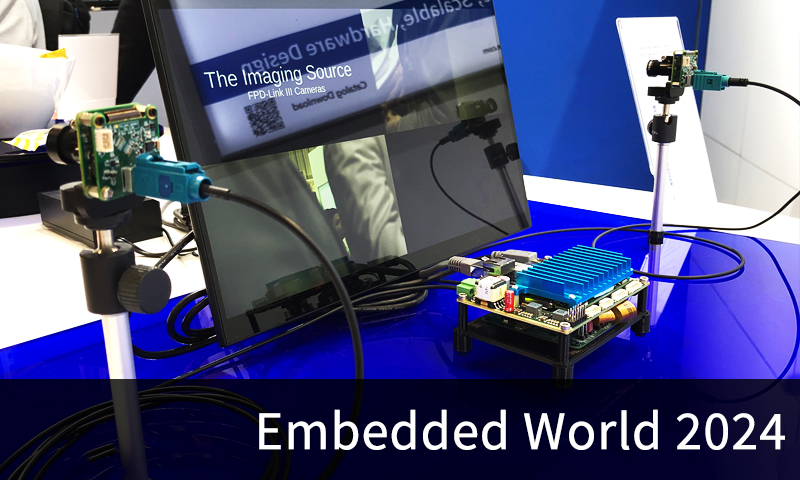
Recap: Embedded World 2024 Showcase by The Imaging Source
April 15, 2024: From April 9 - 11, The Imaging Source showcased its latest product developments for integration-ready embedded vision at Embedded…
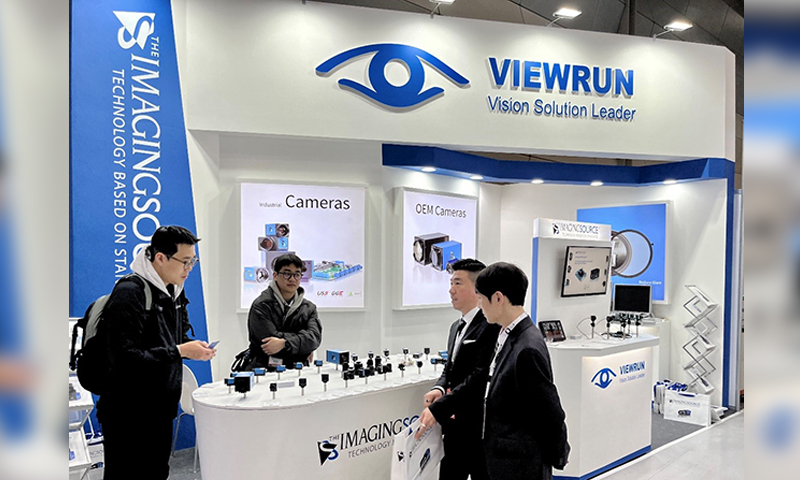
2024 Korea Vision Show: A Look at the Highlights
April 2, 2024: The 2024 Korea Vision Show, part of the Smart Factory + Automation World held at the COEX Convention & Exhibition Center in Seoul…
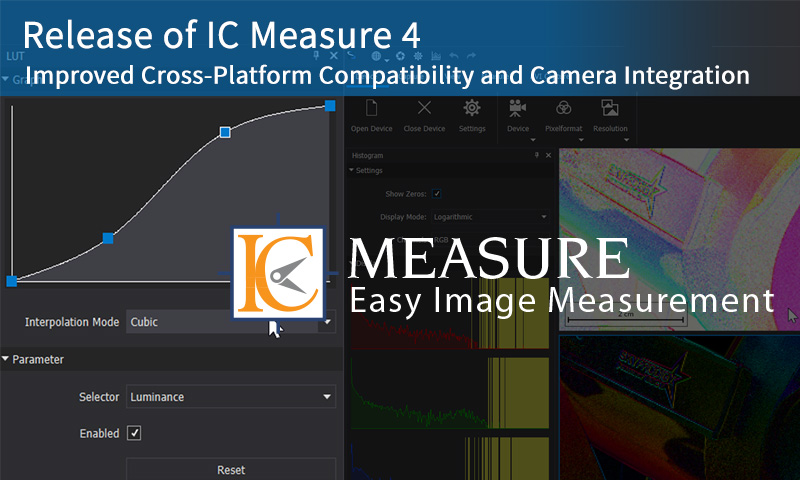
Release of IC Measure 4: Improved Cross-Platform Compatibility and…
March 27, 2024: The Imaging Source is pleased to announce the release of IC Measure 4 for Windows. The updated software provides users with a…
Windows and Linux Software
Drivers, SDKs and End User Software
Machine vision software, drivers, and SDKs for The Imaging Source's industrial and embedded vision cameras.
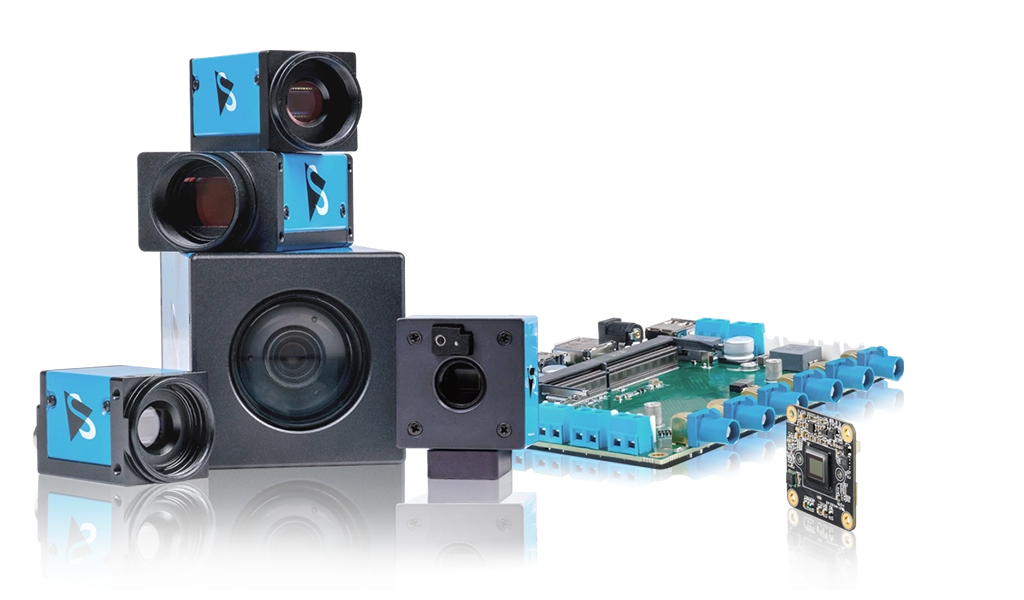
35 Years of Experience
Since 1988
The Imaging Source is a leading manufacturer of high quality industrial and board level cameras, video signal converters, and embedded vision components.
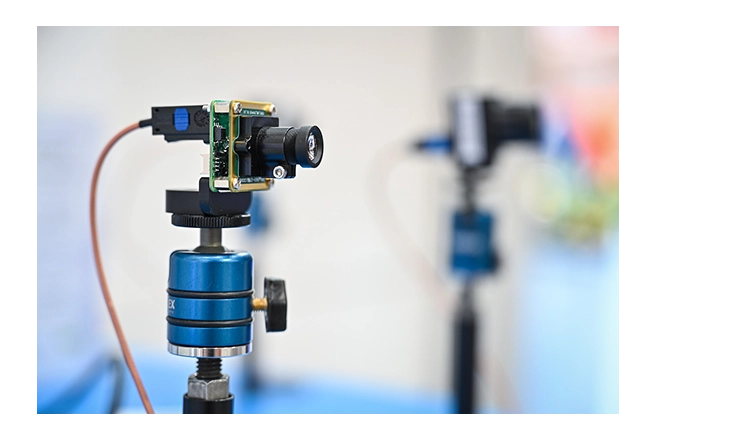
International Technical Exhibition - ITE (Argo Corp.)
December 4, 2024 to December 6, 2024
Find out when and where The Imaging Source will be exhibiting next by checking out our trade fair dates.
Monthly Newsletter
Subscribe to Our Newsletter Today!
The Imaging Source monthly newsletter keeps you informed about new products, industry trends and company news.